


App Store screenshot generator
App Store screenshots that work as one connected set
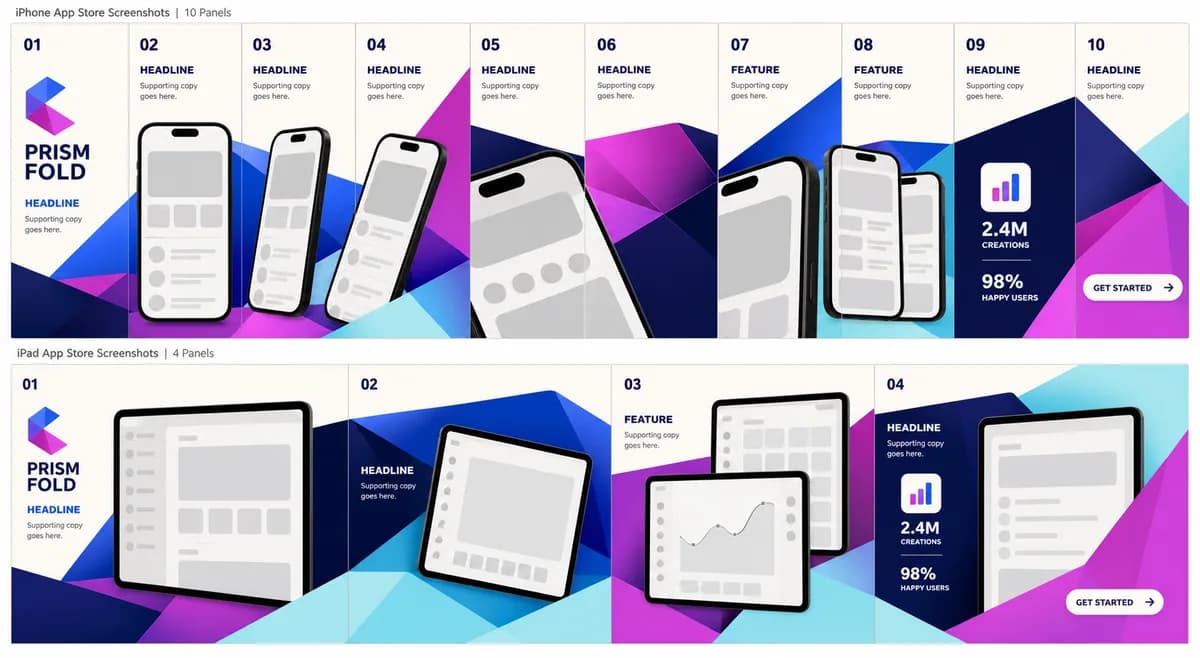
Turn app screens into one connected store story. Build polished iPhone and iPad screenshot sets on a single canvas — customize the copy, colors, logo, devices, and artwork, then export store-ready PNGs at Apple's exact pixel dimensions from the scene you approved.
No account required · Drafts stay local
- iPhone + iPad
- Connected multi-output layouts
- RGB PNG and ZIP export
- Local-first drafts
Why connected layouts
A screenshot gallery should feel like a campaign, not ten separate files.
StoreStage keeps the set on one scene graph. A device can cross an output edge, recurring shapes stay aligned, and every headline belongs to the same visual rhythm. You spend time telling the app's story instead of manually matching isolated artboards.
Built for App Store work
From raw screenshots to a coherent set
Design the whole set
Place devices, headlines, and artwork across one connected scene instead of rebuilding every screenshot separately.
Export what you approved
The canvas and export use the same scene model, so clipping, rotation, and spacing remain consistent in every PNG.
Keep drafts local
Projects stay in this browser until you choose to sign in and move them. Assets are never uploaded in the background.
Use iPhone and iPad layouts
Build portrait or landscape sets with Apple-supported pixel dimensions and flattened RGB PNG output.
Original theme families
Start with a real visual system
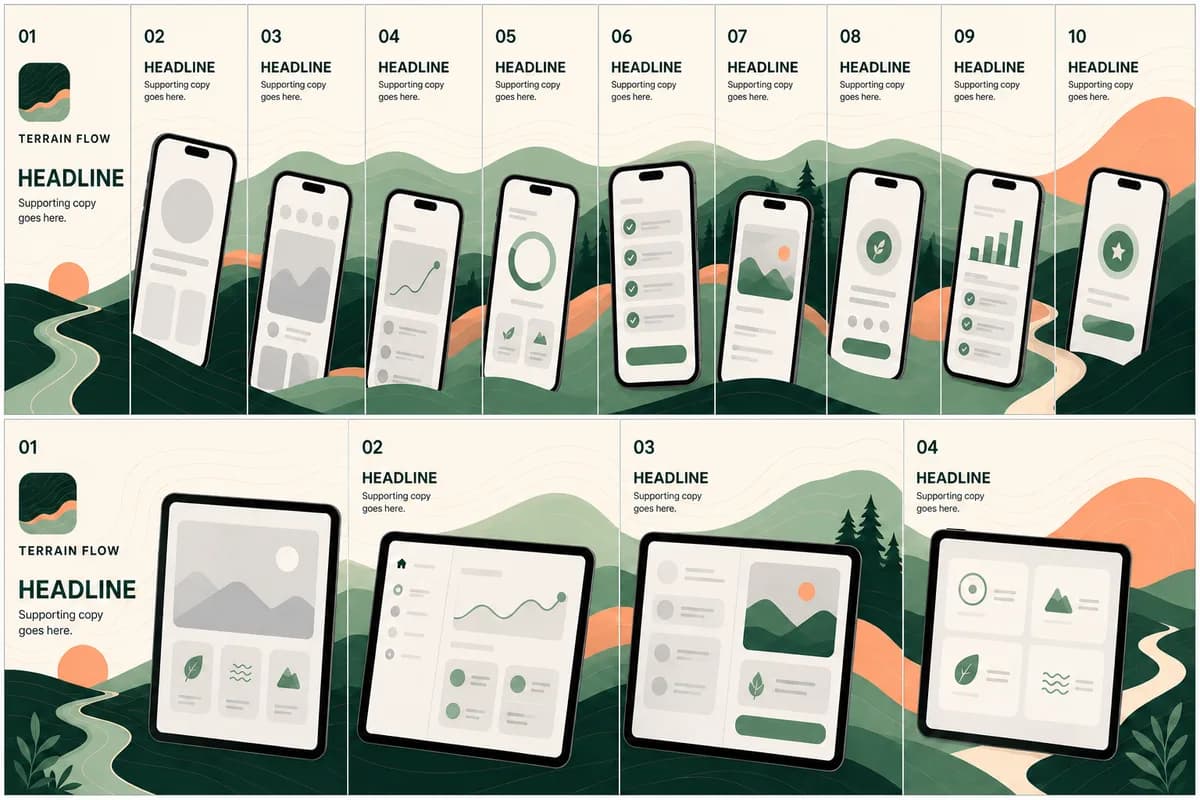
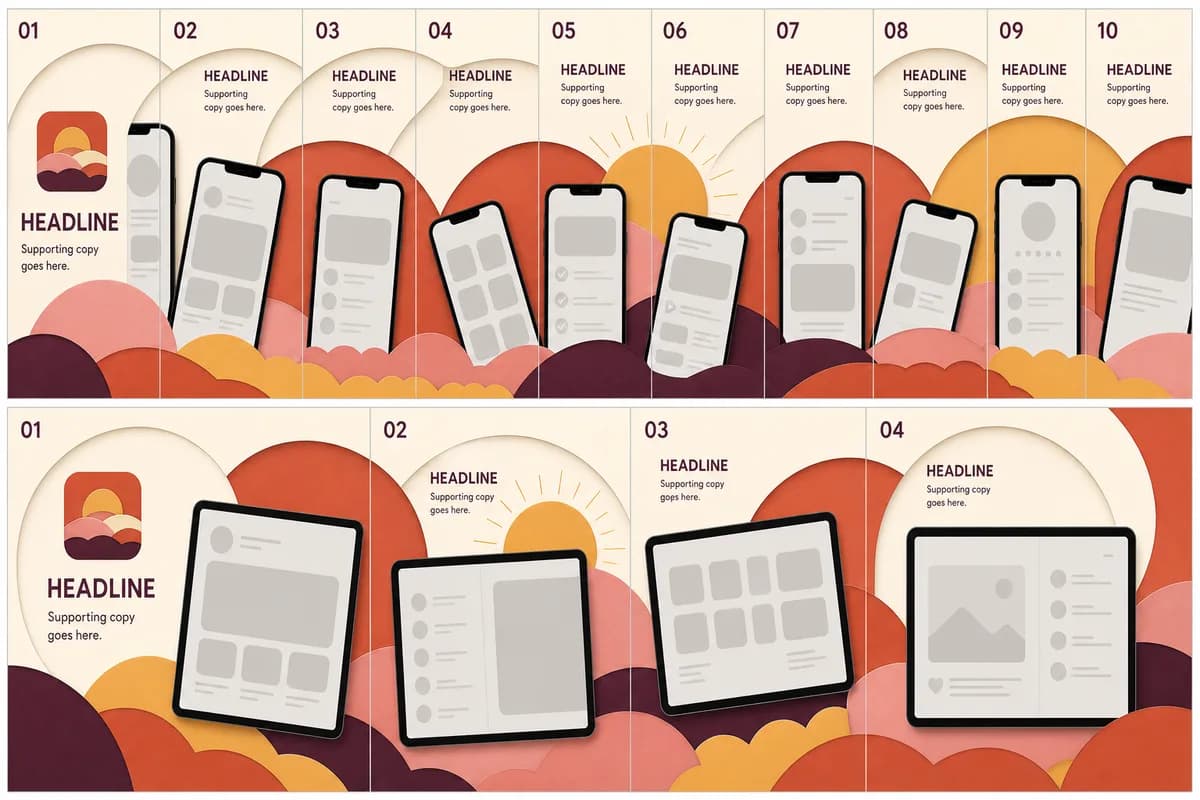
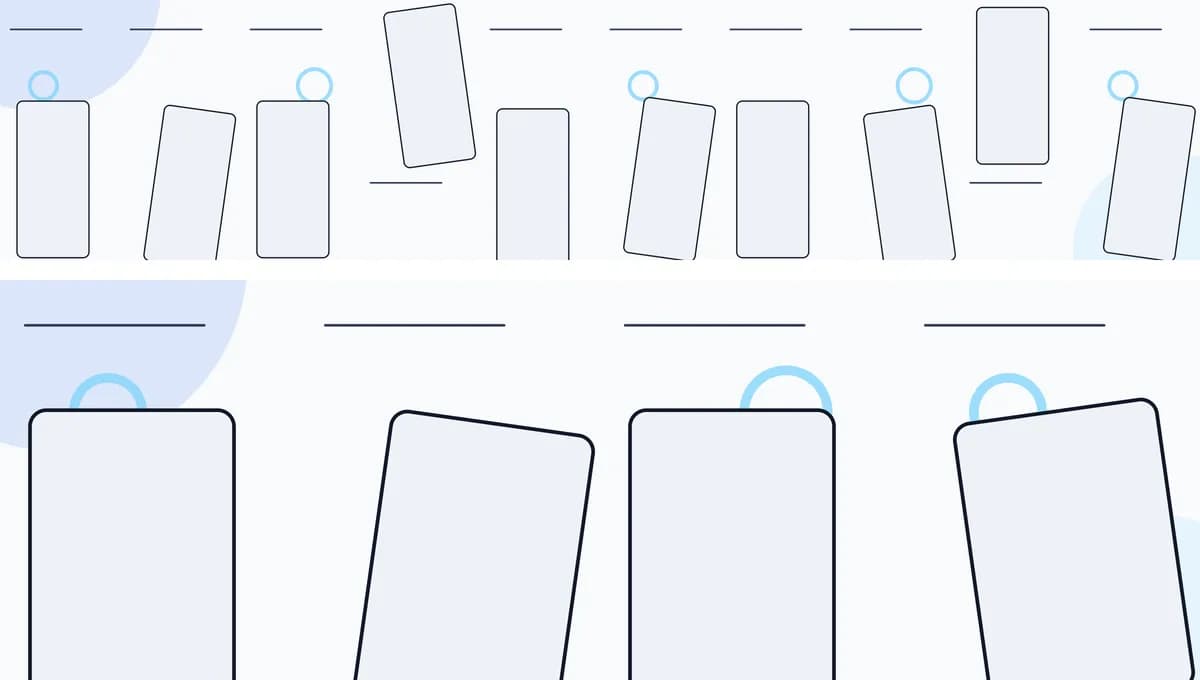
Each family is designed as a complete iPhone and iPad story. Replace the placeholder content with your screenshots, brand colors, logo, and copy.
How it works
A store-ready set in four steps
- Create a project and add your app name, logo, and colors.
- Choose a connected theme for iPhone or iPad.
- Drop in screenshots and refine the copy and composition.
- Download one PNG or the complete ZIP at the selected App Store size.
Remote MCP for Pro
Let your AI workflow prepare the set
Claude, Cursor, Codex, and any other MCP client connect over OAuth — no API key pasted into chat. An agent can inspect cloud projects, preview structured edits before anything is saved, attach assets through signed uploads, and request exports, all without ever receiving your raw file bytes as a tool argument.
- 16 tools across inspect, edit, asset, and export
- Preview changes before they are applied
- Works with Claude, Cursor, Codex, and more
Pricing
Start locally. Upgrade when you are ready to export.
Explore without an account, export a clean set for each of two projects on Free, or unlock every published theme, clean exports, cloud projects, and Remote MCP with Pro.
Anonymous
$0
Open the editor without an account. Drafts stay in this browser until you choose to move them.
- Connected iPhone and iPad layouts
- Three free template families
- Pro templates for preview only
- Watermarked preview downloads
- No clean exports or App Store Connect upload
Free
$0
A verified StoreStage account for two cloud projects and one clean export set per project.
- Two cloud projects and one set per device
- Three free template families
- One clean export set per project, at App Store and Google Play sizes
- Upload that set straight to App Store Connect
- Local drafts still stay on this device until you move them
Pro
Every published template, clean exports and App Store Connect upload, locale sets, and cloud sync for one overlapping Pro seat.
- All published templates
- Clean PNG and ZIP exports at App Store and Google Play sizes
- Direct App Store Connect upload for every set
- Locale sets for translated listings
Payments are processed by Paddle. You can manage or cancel Pro from your account. See the full plan comparison and refund policy.
FAQ
Before you open the editor
Can I try StoreStage without an account?
Yes. Open the editor and build a local draft without signing in. Anonymous downloads are watermarked; a verified Free account includes one clean ZIP set per project, for two projects.
Are my screenshots uploaded automatically?
No. Local drafts and assets stay on this device. StoreStage uses cloud storage only after you sign in and explicitly move a project or upload an asset.
Which screenshot sizes are supported?
StoreStage exports supported iPhone and iPad portrait sizes, plus iPad landscape sizes, and Google Play phone and tablet sizes, as flattened RGB PNG files. See the App Store screenshot sizes reference for every dimension StoreStage exports, and check Apple's current screenshot specifications before submission because accepted device slots can change.
Does StoreStage support Android?
Partly. StoreStage is built around App Store screenshots for iPhone and iPad. It also exports Google Play phone and tablet sizes, and phone screenshots can use a generic Android device frame; tablet exports keep the iPad frame. There are no Android-specific templates, and it does not upload to Google Play Console.
Can an AI agent edit a project?
Yes. Pro includes Remote MCP for compatible clients. Agents can inspect cloud projects, preview typed changes, attach assets through signed uploads, and request render jobs. See the MCP guide.
Your next App Store set can start here
Open a local draft, choose a theme, and see the full connected story before you sign in.